Introduction
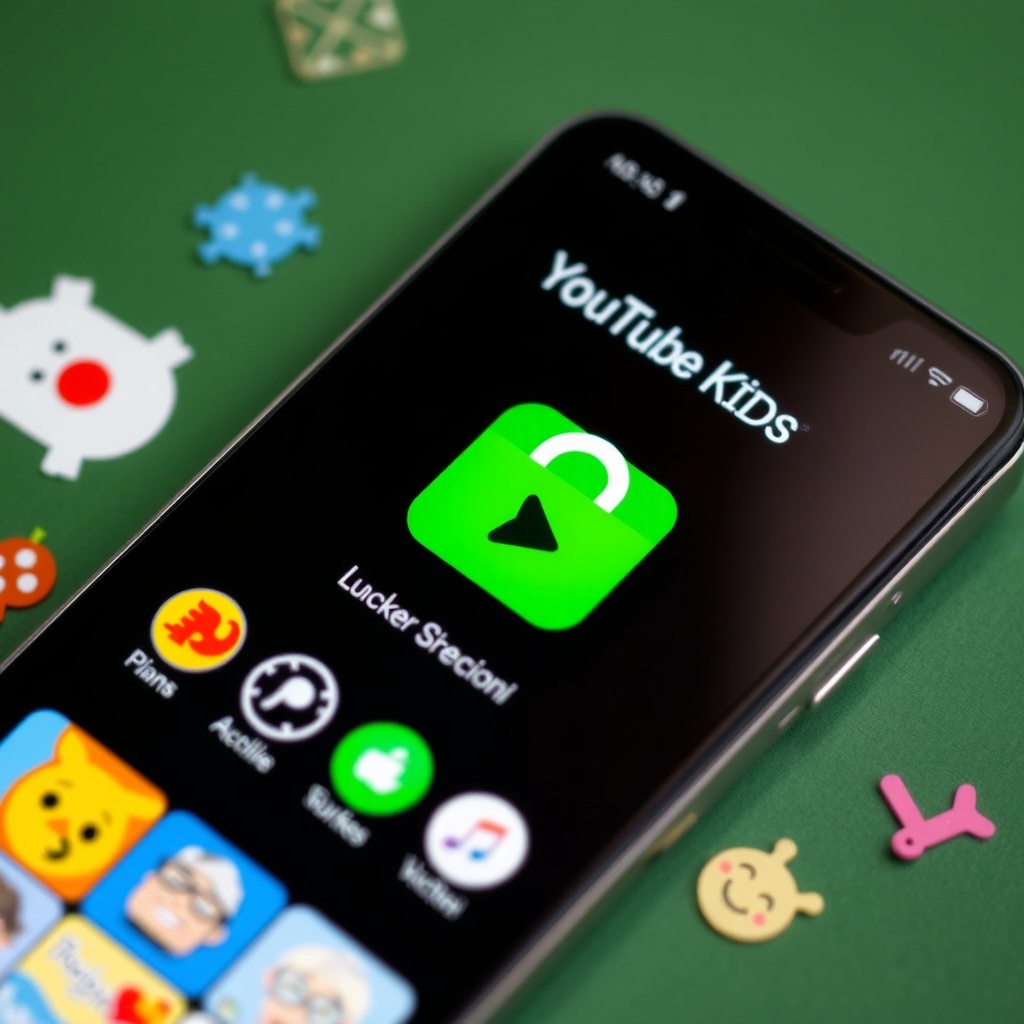
YouTube Kids offers a curated environment, but it still needs careful setup to match your family’s values.
Why Use YouTube Kids
The app filters out most adult content and provides age based recommendations. However, default settings may still show videos that are not ideal for every child.
Setting Up the App
- Download the App: Get the official YouTube Kids app from the app store.
- Create a Profile: Add your child’s name and age to generate a tailored feed.
- Choose a Content Level: Select from the three preset levels: 2-5, 6-8, 9-12.
Customizing Settings
- Search Control: Turn off search to limit the child to the recommended feed.
- Watch Time: Set a daily limit to prevent binge watching.
- Blocked Words: Add any words you want to filter out.
- Approved Channels: Add channels you trust to the whitelist.
Managing Playlists
Use the My Playlists feature to create a safe list of videos. Add new videos only after previewing them yourself.
Monitoring Usage
Check the Watch History tab regularly. If you notice a video that is not age appropriate, remove it and add a note to the directory.
Conclusion
By configuring YouTube Kids thoughtfully, you give your child a safe, enjoyable and educational viewing experience.